Query Loop Integration
Display recurring events in Bricks Builder using the custom query loop type.
Overview
Lista Recurring Events adds a Recurring Events query type to Bricks Builder. This query type:
- Returns individual occurrences (not just posts)
- Supports sorting by occurrence date
- Filters past events automatically (optional)
- Integrates with AJAX filtering
Creating a Query Loop
Step 1: Add a Container
- In Bricks editor, add a Container, Block, or Div element
- This element will contain your event layout
Step 2: Enable Query Loop
- Select the container element
- In the settings panel, find Query Loop
- Toggle it On
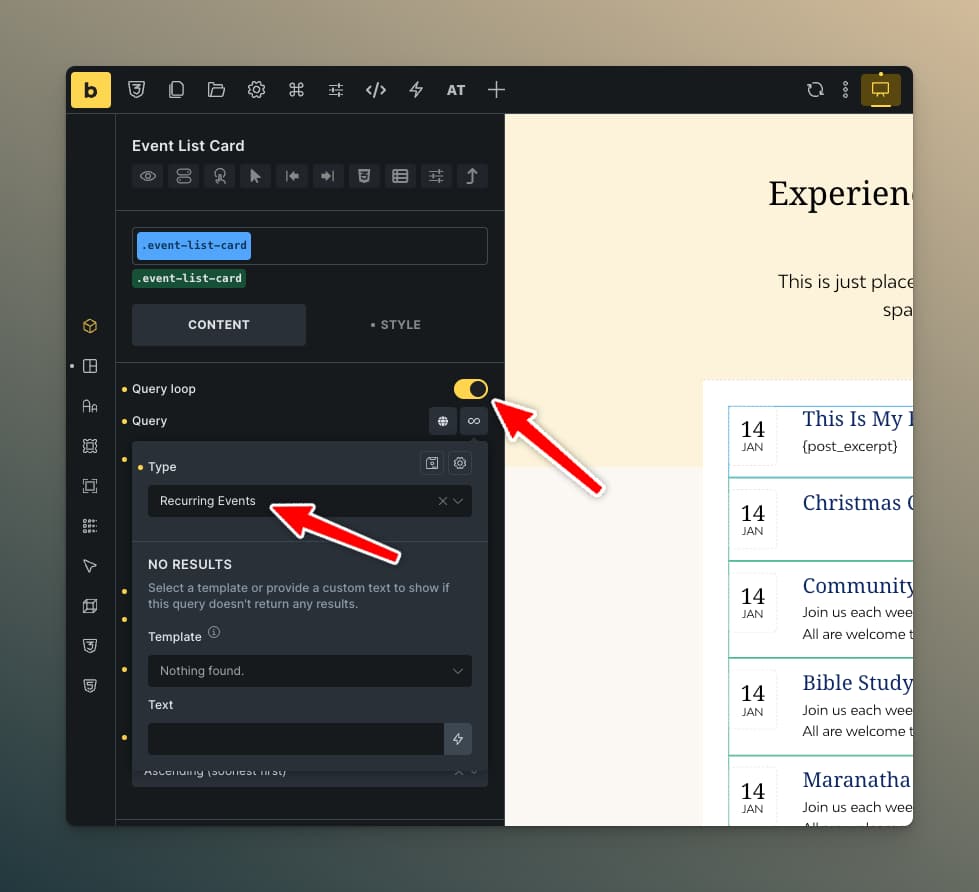
Step 3: Select Query Type
- Click the Type dropdown
- Select Recurring Events
Step 4: Configure Query Settings
Once Recurring Events is selected, you'll see custom options:

Basic Options
| Option | Description | Default |
|---|---|---|
| Post Type | Which post type(s) to query | All configured |
| Event Scope | Upcoming events only, All events, or Past events only | Upcoming |
| Order By | Sort criterion | Next Occurrence |
| Order | Ascending or Descending | Ascending |
| Include Non-Recurring | Include one-time events | On |
| Occurrences Per Event | How many dates per event | 1 |
| Posts Per Page | Results per page | 10 |
| Hide In-Progress Events | Override the global Query Behaviour setting for this loop: Use Global, Hide once started, or Show until ended | Use Global |
Advanced Options
| Option | Description |
|---|---|
| Offset | Skip first X results |
| Include IDs | Only show specific event IDs |
| Exclude IDs | Hide specific event IDs |
| Taxonomy Filter | Filter by category/tag |
| Date Range | Limit to date range |
| Meta Query | Filter by custom fields |
Step 5: Build Your Layout
Add elements inside the container to design your event card:
- Heading for event title
- Text elements with dynamic tags for dates
- Image element for featured image
- Button linking to the event
Query Loop Example
Container (Query Loop: Recurring Events)
├── Heading: {post_title}
├── Div (Date display)
│   ├── Text: {lre_next_weekday}
│   ├── Text: {lre_next_date}
│   └── Text: {lre_next_time}
├── Image: {featured_image}
└── Button: View Event → {post_url}
Understanding Occurrences Per Event
This setting controls how many occurrence "rows" each event generates:
- 1: Each event appears once (with its next occurrence)
- 3: Each event appears up to 3 times (next 3 occurrences)
- 5: Each event appears up to 5 times
Setting this higher than 1 creates a list showing multiple upcoming dates for each event.
Sorting Options
By Next Occurrence (Default)
Events sorted by their next occurrence date. Soonest events appear first (ascending) or last (descending).
By Title
Alphabetical sorting by event title.
By Publish Date
Sort by when the event post was created.
Hide In-Progress Events
The Hide In-Progress Events dropdown lets each Bricks query loop decide what happens to a same-day event that has already started but not yet ended:
- Use Global — follow the Settings → Query Behaviour → Treat in-progress events as past option
- Hide once started — treat the event as past as soon as its start time has passed today
- Show until ended — keep the event in upcoming results while it's running
Today's events that have already finished are always removed from upcoming queries regardless of this setting. See Query Behaviour for more.
Filtering Integration
Query loops work with the filter elements:
- Date Filter
- Date Range Filter
- Taxonomy Filter
- Search Filter
- Event Type Filter
See Filter Elements for setup instructions.
Pagination
Add the LRE Pagination element to paginate results:
- Add the Pagination element outside your query loop
- Target your query loop container
- Style the pagination controls
See Pagination Element for detailed configuration.
Infinite Scroll & Load More
LRE query loops also work with Bricks Builder's built-in infinite scroll toggle and load more button interactions. Enable these from Bricks' query loop settings — no extra configuration on the LRE side is required.
Taxonomy Filter Dynamic Tags
The Terms field in the Bricks query loop taxonomy filter accepts Bricks dynamic tags such as {post_terms_lre_event_type}. Dynamic tag output is automatically resolved to term slugs, so both term names and slugs work correctly. This is useful for building archive templates where the displayed events should match the current term context.
Performance Tips
- Stored Occurrences — The plugin uses pre-calculated occurrences stored in the database, making query loops significantly faster than on-demand calculation
- Use reasonable limits — Keep "Occurrences Per Event" low for better performance
- Paginate large lists — Use pagination instead of showing all events at once
- Event Scope: Upcoming — Reduces the result set by excluding past occurrences