Pattern Details
Detailed configuration options for each recurrence pattern.
Daily Pattern
The simplest pattern—event repeats every X days.
Configuration
| Option | Description | Default |
|---|---|---|
| Interval | Days between occurrences | 1 |
Examples
- Every day: Interval = 1
- Every other day: Interval = 2
- Every week (alternative to Weekly): Interval = 7
Pattern Description
The pattern description (shown via {lre_recurrence_pattern} tag) displays:
- "Every day" for interval of 1
- "Every X days" for other intervals
Weekly Pattern
Event repeats on specific days of the week.
Configuration
| Option | Description | Default |
|---|---|---|
| Days | Which days of the week | None (required) |
| Interval | Weeks between occurrences | 1 |
Selecting Days
Check one or more days. The event will occur on ALL selected days during each applicable week.
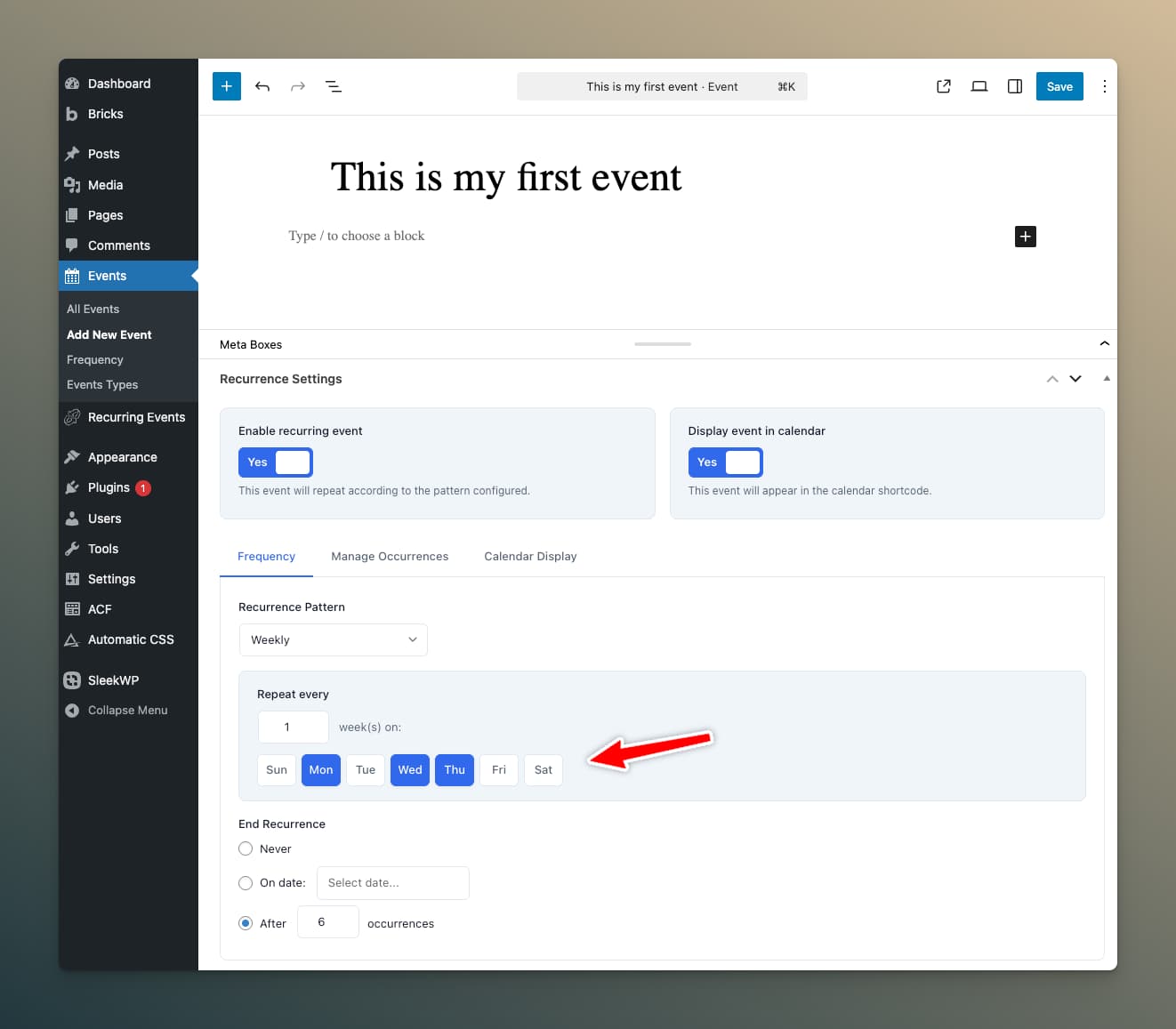
Examples
- Every Monday: Days = Mon, Interval = 1
- Mon/Wed/Fri every week: Days = Mon, Wed, Fri, Interval = 1
- Weekends: Days = Sat, Sun, Interval = 1
- Every other Tuesday: Days = Tue, Interval = 2
Per-Weekday Time Schedules
Events that repeat on multiple days of the week can have different start and end times for each day — without needing per-occurrence overrides.
For example, a class running Tuesday, Thursday, and Saturday can run at 5:30 PM on the weekdays and 10:00 AM on Saturday using a single recurring event.
How to enable:
- Configure your Weekly pattern and check the days the event runs on.
- Toggle on Different times per day beneath the weekday checkboxes.
- A time-picker row appears for each selected weekday. Enter the start and end time for that day.
The schedule applies automatically to every generated occurrence. Per-occurrence time overrides (set in the Overrides panel) still take priority when present.
This works equally well with the Monthly (Nth Weekday) pattern when you've selected multiple weekdays — see below.
Pattern Description
- "Every week on Monday"
- "Every week on Monday, Wednesday, Friday"
- "Every 2 weeks on Tuesday"
Monthly (Nth Weekday) Pattern
Event occurs on a specific weekday occurrence within each month.
Configuration
| Option | Description | Options |
|---|---|---|
| Ordinal | Which occurrence(s) | First, Second, Third, Fourth, Fifth, Last |
| Weekday | Day of week | Sunday - Saturday |
| Interval | Months between occurrences | 1, 2, 3, etc. |
Examples
- First Monday of every month: Ordinal = First, Weekday = Monday, Interval = 1
- Second Tuesday every 2 months: Ordinal = Second, Weekday = Tuesday, Interval = 2
- Last Friday of every month: Ordinal = Last, Weekday = Friday, Interval = 1
The "Last" Option
The "Last" ordinal is intelligent:
- In months with 4 Fridays, "Last Friday" is the 4th Friday
- In months with 5 Fridays, "Last Friday" is the 5th Friday
This is perfect for scheduling that truly needs the last occurrence of a weekday, regardless of month length.
The "Fifth" Option
The "5th" ordinal targets the fifth occurrence of a weekday within a month. Since not every month has a 5th occurrence, months with only four are automatically skipped. This is useful for events that should only run in longer months.
Multiple Ordinal Selection
You can select more than one ordinal at a time — for example, "1st and 3rd Tuesday" — without creating separate events. All selected ordinals generate occurrences within the same recurrence pattern.
Per-Weekday Time Schedules
When the Monthly (Nth Weekday) pattern targets multiple weekdays, each weekday can have its own start and end time. Enable Different times per day beneath the weekday selectors and enter times for each — see the Weekly Pattern section for full details.
Pattern Description
- "First Monday of every month"
- "Second Tuesday every 2 months"
- "Last Friday of every month"
- "Fifth Sunday of every month"
- "First and Third Tuesday of every month"
Monthly (Same Date) Pattern
Event repeats on the same calendar date each month.
Configuration
| Option | Description | Default |
|---|---|---|
| Interval | Months between occurrences | 1 |
The date comes from your anchor date. If your event's anchor date is January 15, the event repeats on the 15th of applicable months.
Handling Month-End Dates
For anchor dates near month end (29th, 30th, 31st):
- The plugin adjusts to the last day of shorter months
- January 31st event → February 28th (or 29th in leap years)
Examples
- Every month on the 15th: Interval = 1
- Quarterly (every 3 months): Interval = 3
- Semi-annually (every 6 months): Interval = 6
Pattern Description
- "Every month"
- "Every 2 months"
- "Every 3 months"
Yearly Pattern
Event occurs once per year on the same date.
Configuration
No additional options—the event repeats annually on the anchor date.
Examples
- Annual conferences
- Birthday celebrations
- Anniversary events
- Annual reviews
Pattern Description
- "Every year"
Custom Dates Pattern
For irregular schedules that don't fit standard patterns.
Configuration
Manually select specific dates from a calendar picker.

Use Cases
- Events with irregular schedules
- One-time series (e.g., a 4-part workshop on specific dates)
- Seasonal events with varying dates
- Events following an external schedule
Managing Custom Dates
- Click in the date picker area
- Select dates you want
- Selected dates appear as tags
- Click the X on a tag to remove a date
Pattern Description
- "Single custom date" (for 1 date)
- "Custom schedule (X dates)" (for multiple dates)
Choosing the Right Pattern
| Scenario | Recommended Pattern |
|---|---|
| Daily standup meeting | Daily (interval 1) |
| Weekly team sync | Weekly (single day) |
| MWF exercise class | Weekly (multiple days) |
| Class with different times per day | Weekly + per-weekday time schedules |
| Monthly board meeting (first Tuesday) | Monthly Nth Weekday |
| Rent due on the 1st | Monthly Same Date |
| Annual conference | Yearly |
| Workshop series on random dates | Custom Dates |