Configuration
Configure Lista Recurring Events to work with your WordPress setup.
Accessing Settings
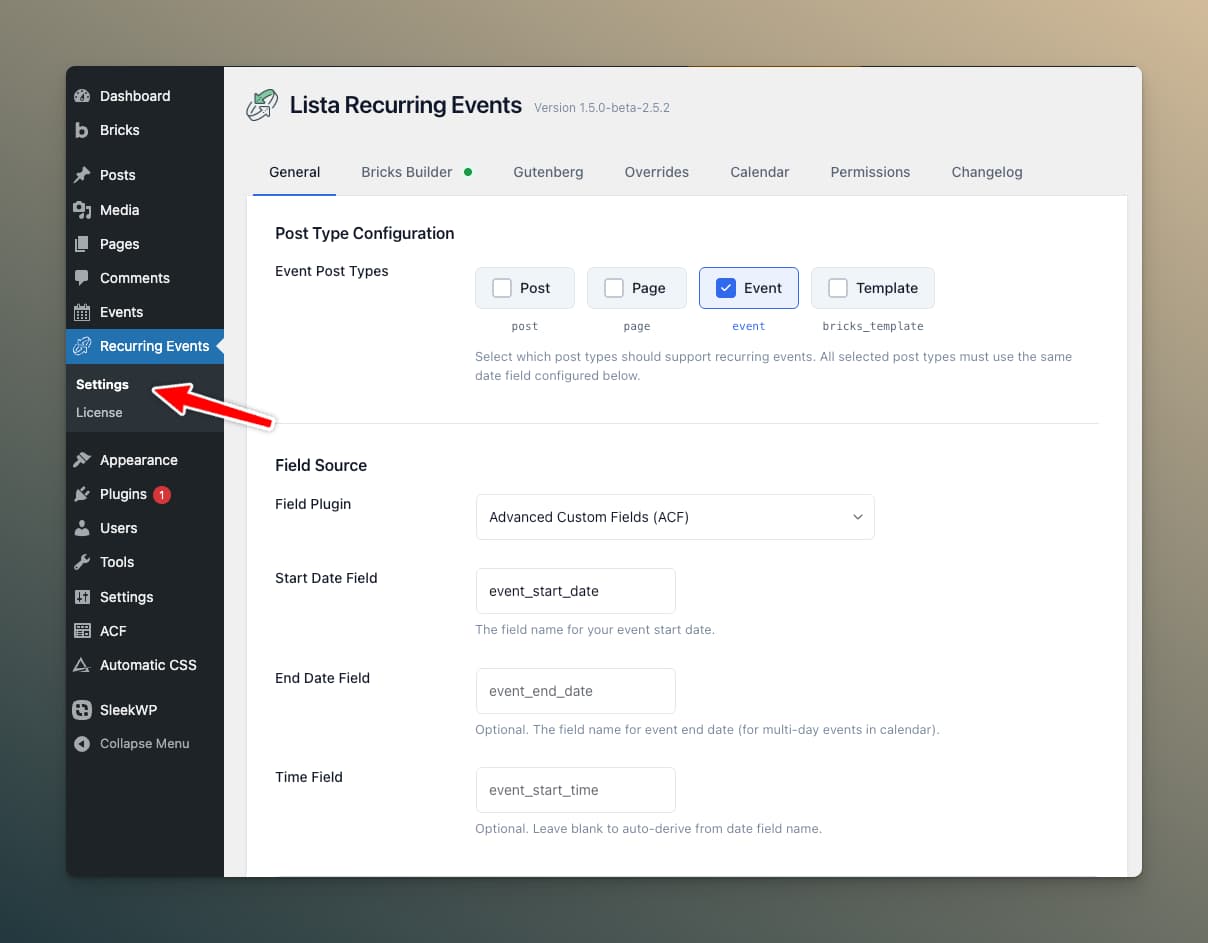
Navigate to Recurring Events → Settings in your WordPress admin to access all configuration options.
General Settings
Post Types
Select which custom post types should support recurring events. You can select multiple post types.

If you don't have an events post type yet, you'll need to create one using your preferred method (CPT UI, ACF, code, etc.) before configuring the plugin.
Field Source
The plugin needs to know where your event date/time data comes from. Supported sources:
| Source | Description |
|---|---|
| Auto Detect | Automatically detects your field source (recommended) |
| ACF | Advanced Custom Fields |
| ACPT | Advanced Custom Post Types |
| JetEngine | JetEngine by Crocoblock |
| Meta Box | Meta Box plugin |
| Pods | Pods Framework |
| Standard WP | Native WordPress custom fields |
Date Field
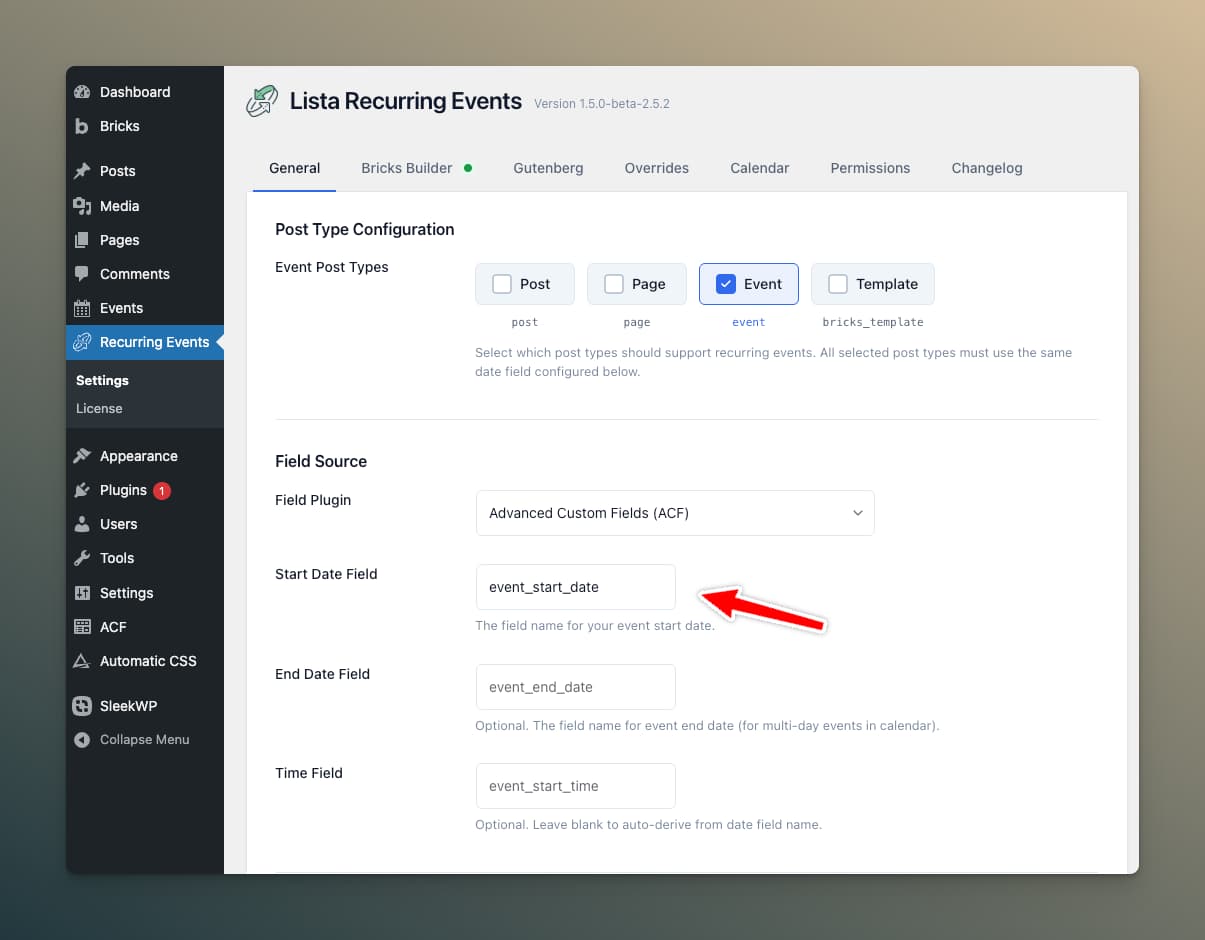
Enter the field name/key that stores your event's start date. Common examples:
event_start_dateevent_datestart_date
End Date Field (Optional)
If your events have an end date for multi-day events, enter that field name here.
Time Field (Optional)
Enter the field name that stores your event's start time. This is used for:
- Displaying event times in query loops
- Calendar event times
- Add to Calendar functionality
Cache Settings
Cache Duration
How long to cache occurrence calculations. Default is 1 hour (3600 seconds).
- Shorter duration: More real-time but slightly slower
- Longer duration: Better performance but delayed updates
Clear Cache
Click Clear All Cache to immediately clear cached calculations. Useful when:
- Testing recurrence pattern changes
- Troubleshooting display issues
- After bulk importing events
Default Occurrences
Set how many future occurrences to calculate by default. This affects:
- Query loops showing multiple events
- The
[lre_occurrences]shortcode - Metabox preview
Higher values calculate more dates but take longer. The maximum is 375 occurrences as a safety limit.
Date Format
Set the default date format for shortcodes and dynamic tags. Uses PHP date format strings:
| Format | Example Output |
|---|---|
j F, Y | 15 January, 2026 |
F j, Y | January 15, 2026 |
d/m/Y | 15/01/2026 |
m/d/Y | 01/15/2026 |
Y-m-d | 2026-01-15 |
Overrides Tab
Configure which fields can have per-occurrence overrides.
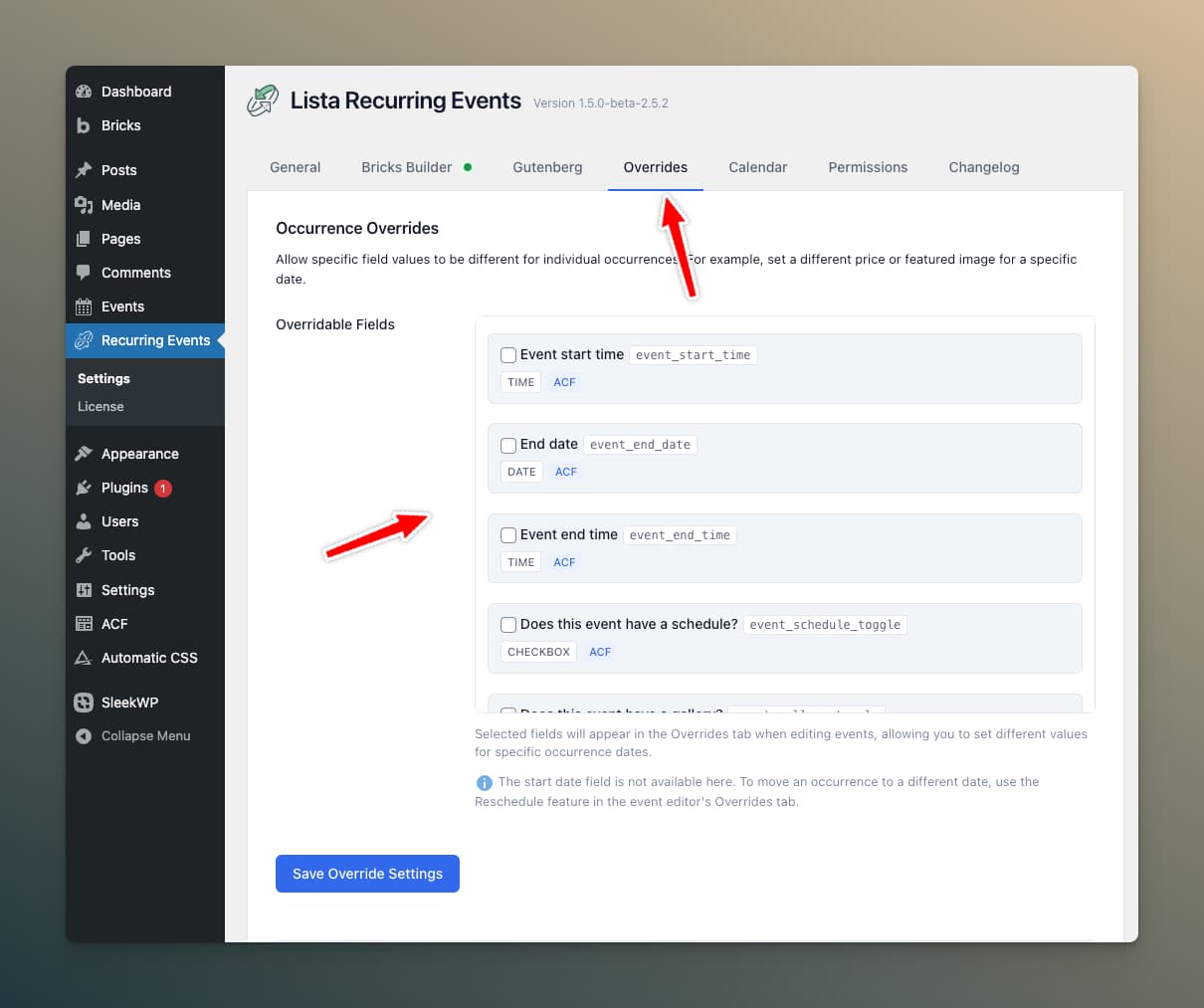
The plugin automatically detects available fields from your configured field source. Check the fields you want to allow overrides for:
- Title fields — Change the event name for specific dates
- Image fields — Use different featured images per occurrence
- Text fields — Custom descriptions or locations
- URL fields — Different links per occurrence
Permissions Tab
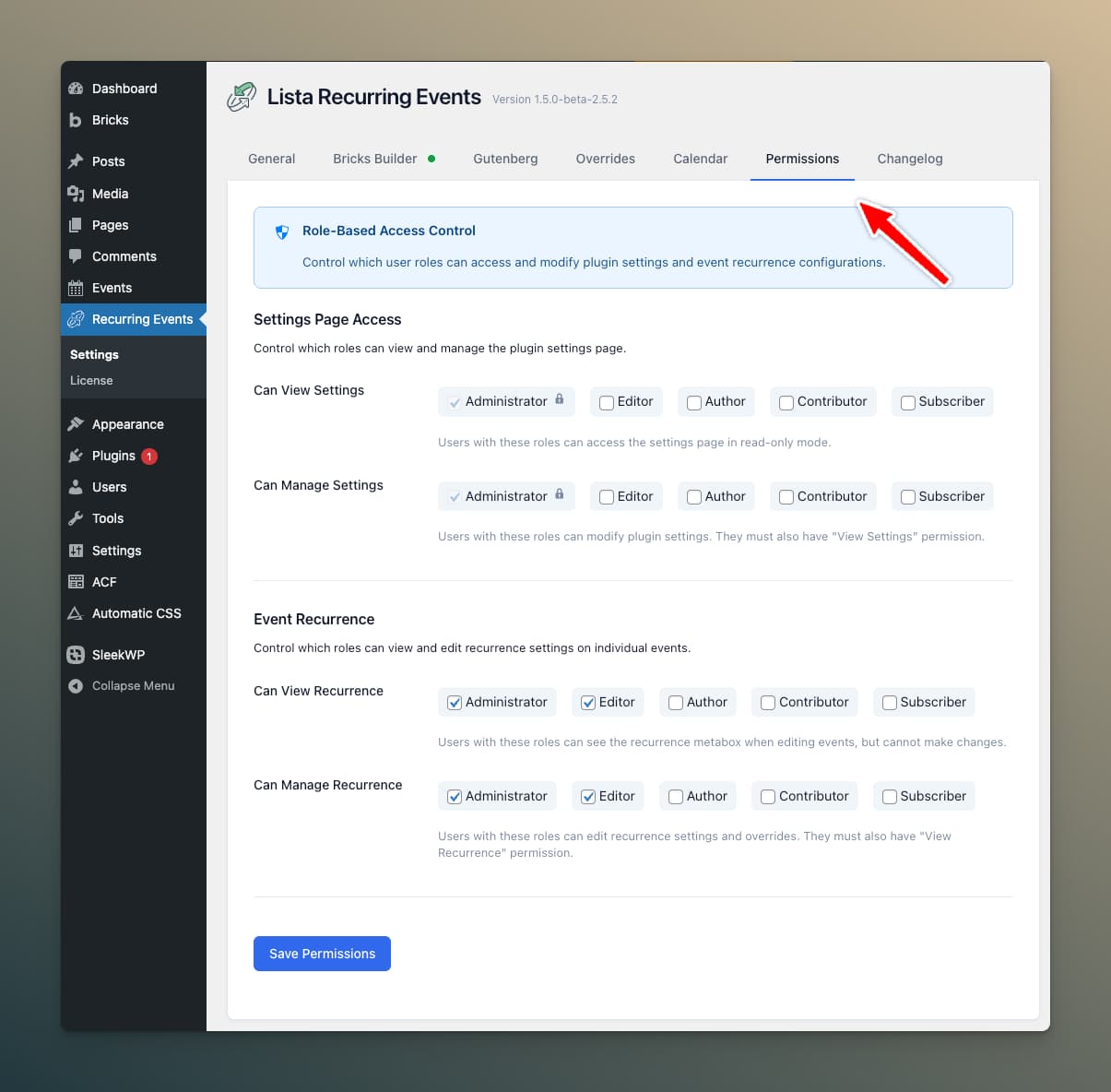
Control who can access recurring event features.
Settings Access
Choose which user roles can view and manage plugin settings:
- View Settings — Roles that can see the settings page
- Manage Settings — Roles that can change settings
Recurrence Management
Choose which roles can manage recurrence on individual events:
- View Recurrence — Roles that can see the metabox
- Manage Recurrence — Roles that can edit recurrence settings
The plugin always keep Administrator enabled in settings access to prevent lockout.
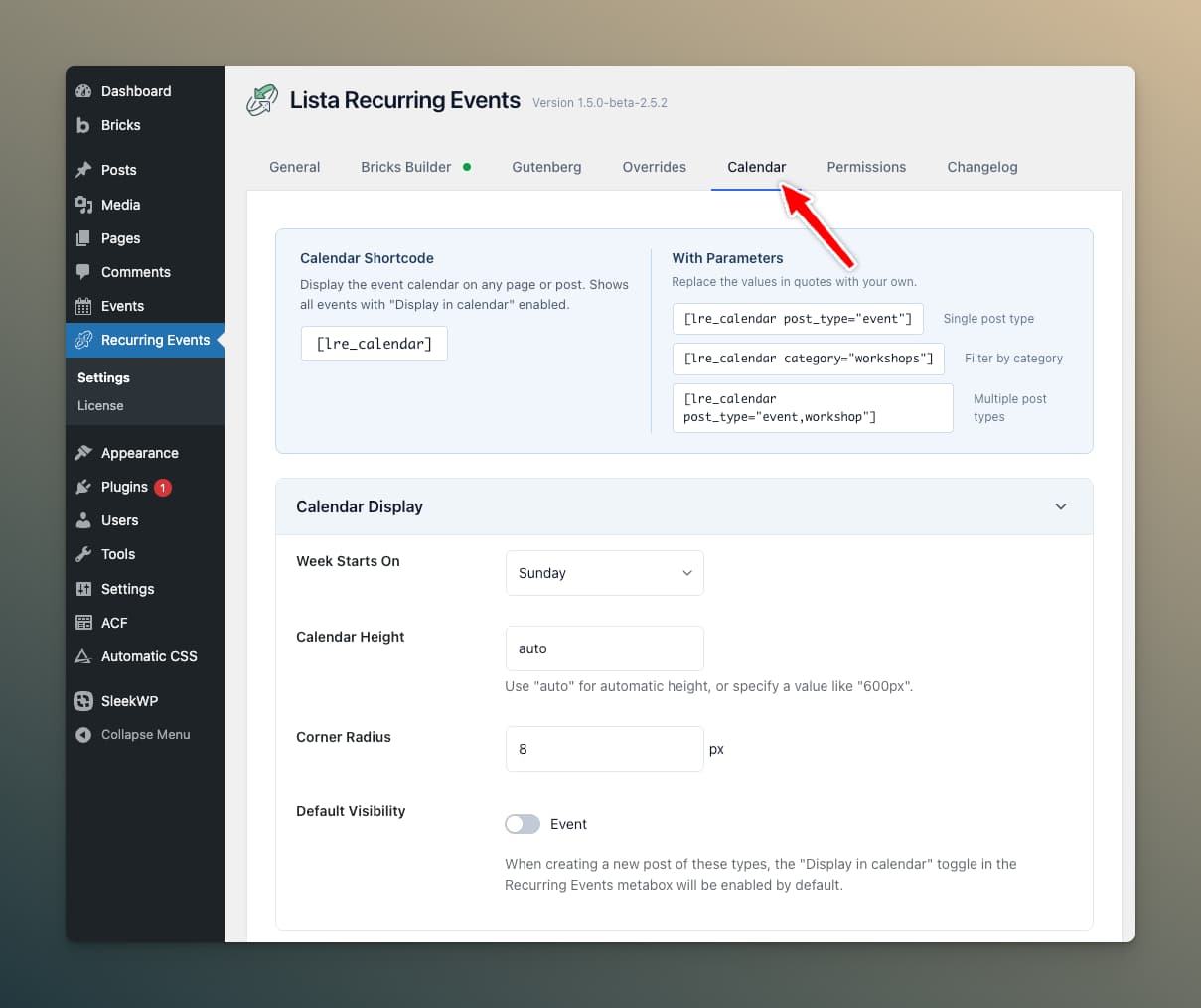
Calendar Tab
Configure the default appearance and behavior of the calendar. See the Calendar section for detailed options.
Add to Calendar
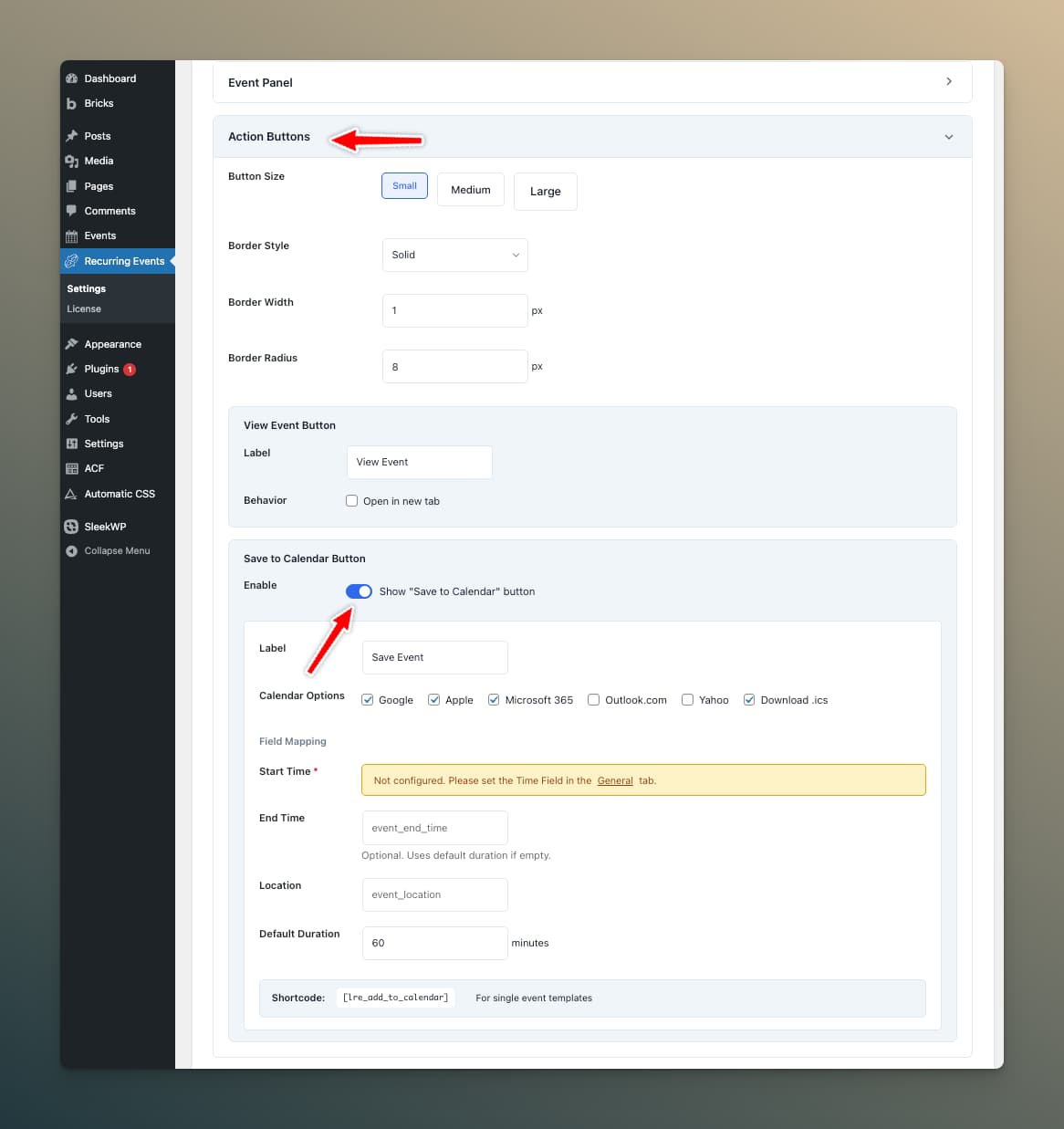
Enable the "Add to Calendar" button feature within the 'Action Buttons' accordion:
- Toggle Enable Add to Calendar to On
- Configure the Start Time Field name
- Optionally set End Time Field and Location Field
- Set a Default Duration (used when no end time is specified)
- Choose which Calendar Providers to enable
Schema Tab
Configure Schema.org structured data output for Google rich search results. See Schema.org Structured Data for full details.
| Setting | Description |
|---|---|
| Enable Schema Output | Master toggle for JSON-LD markup |
| Organizer Name | Default organizer for all events |
| Organizer URL | Organizer website |
| Location Name | Default venue name |
| Address Fields | Street, City, State, Postal Code, Country |
| Attendance Mode | Online, Offline, or Mixed |
Advanced Tab
Manage plugin modes and data. See Stored Occurrences and Native Events Mode for details.
| Setting | Description |
|---|---|
| Mode Switcher | Switch between Native and Integration modes |
| Reset Plugin Data | Complete fresh start (requires confirmation) |
| Data Information | Table name, post types, occurrence count, version |
Reset Plugin Data is destructive and cannot be undone. It removes all recurrence settings, stored occurrences, and plugin options.
Debug Tab
Enable debug logging for troubleshooting. When enabled, the plugin logs detailed execution information that can help diagnose issues.
- Toggle Enable Debug Logging to On
- Reproduce the issue
- Check the debug output
- Toggle Off when done
Saving Settings
Click Save Changes at the bottom of each tab after making changes. Some changes (like post type selection) may require clearing the cache to take effect.