Creating Your First Recurring Event
Learn how to create a recurring event and configure its recurrence pattern.
Create an Event Post
- Navigate to your events post type in WordPress admin
- Click Add New
- Enter your event title and content
- Fill in the date field you configured in settings (e.g.,
event_start_date)

The Recurrence Settings Metabox
When editing an event, you'll see the Recurrence Settings metabox. This is where you configure how the event repeats.
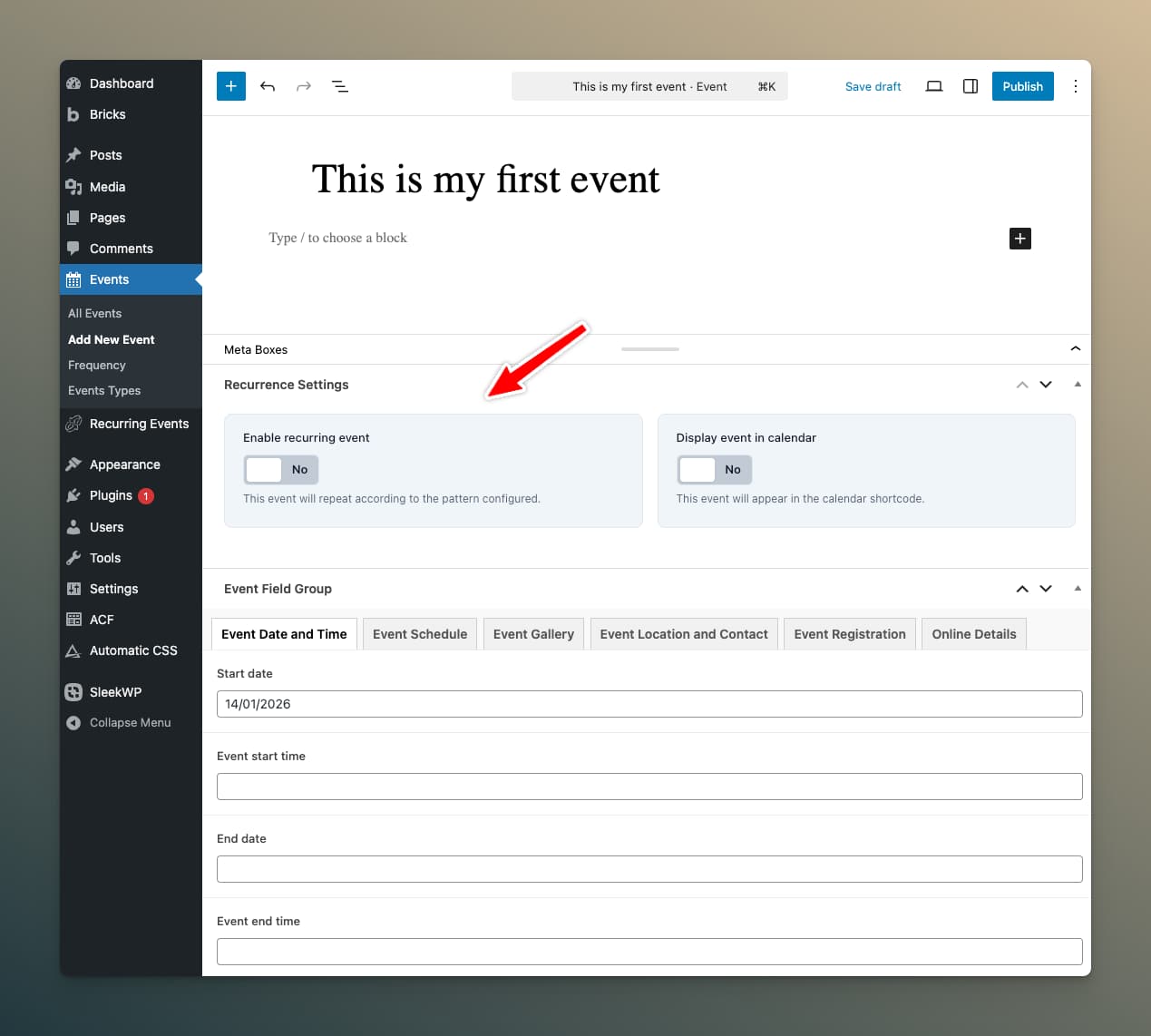
Enable Recurring Event
Switch this toggle to Yes to make the event repeat. When enabled, additional options appear.
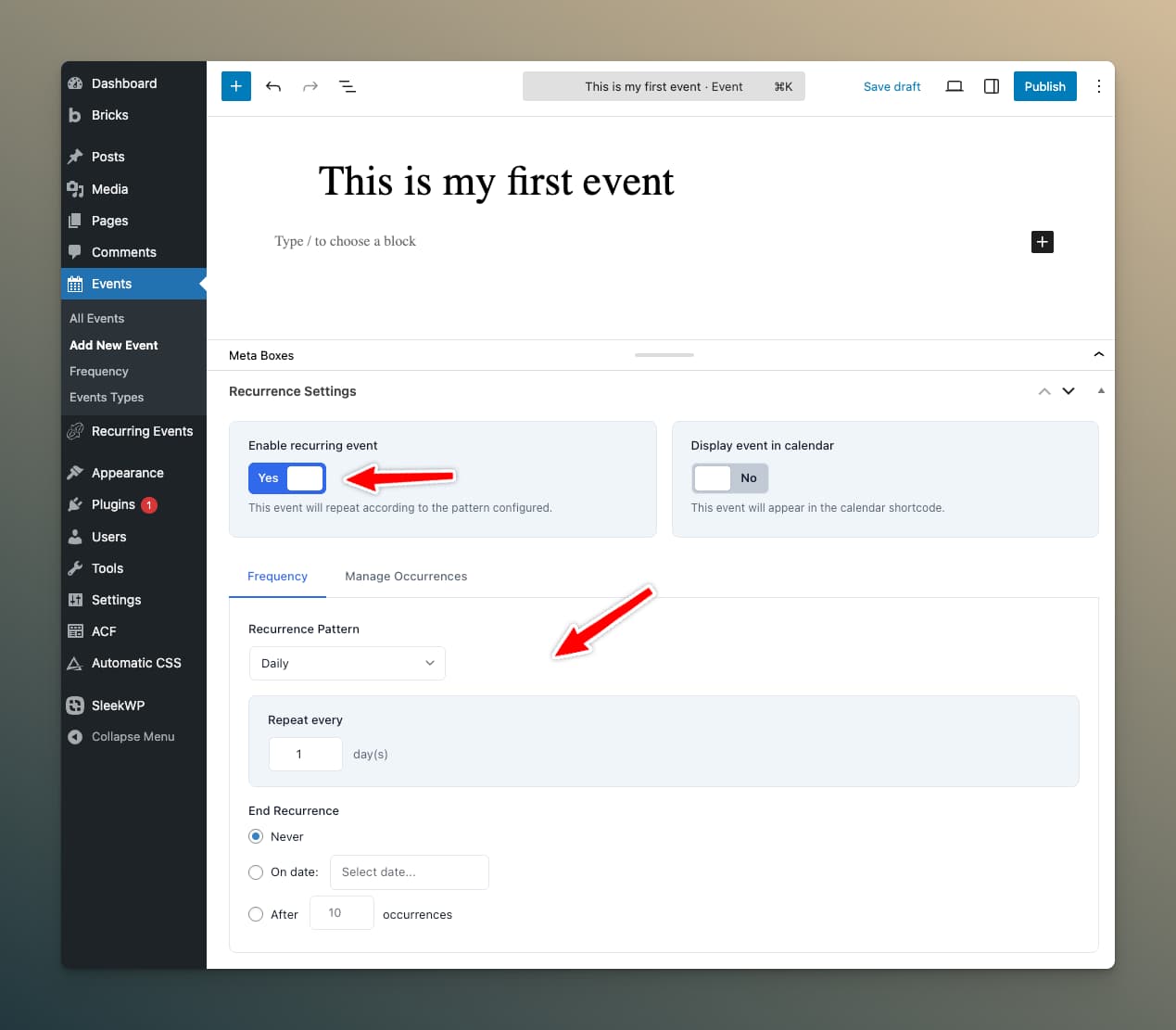
Display Event in Calendar
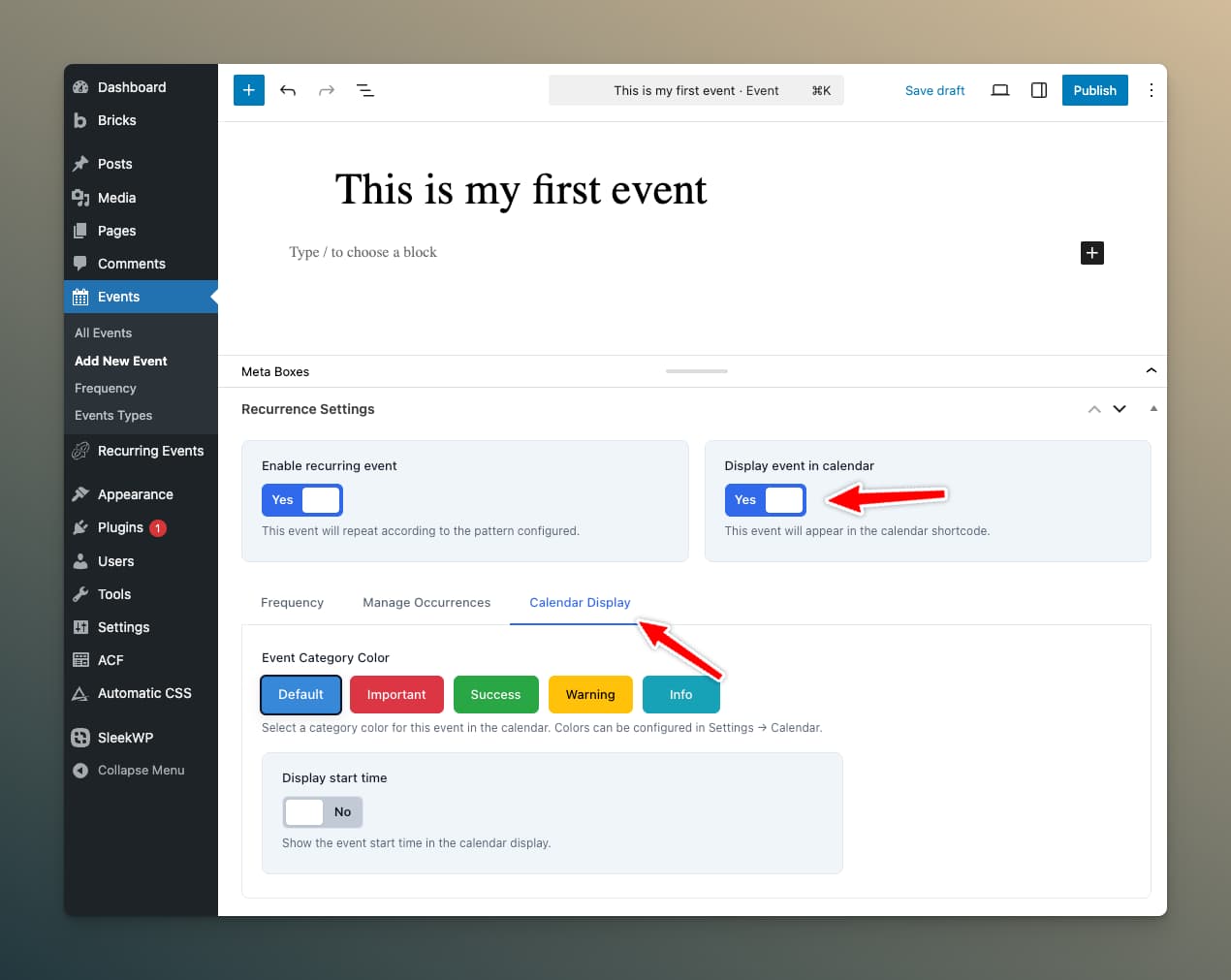
Switch this toggle to Yes to show the event on the [lre_calendar] calendar. You can enable calendar display without enabling recurrence—useful for one-off events.
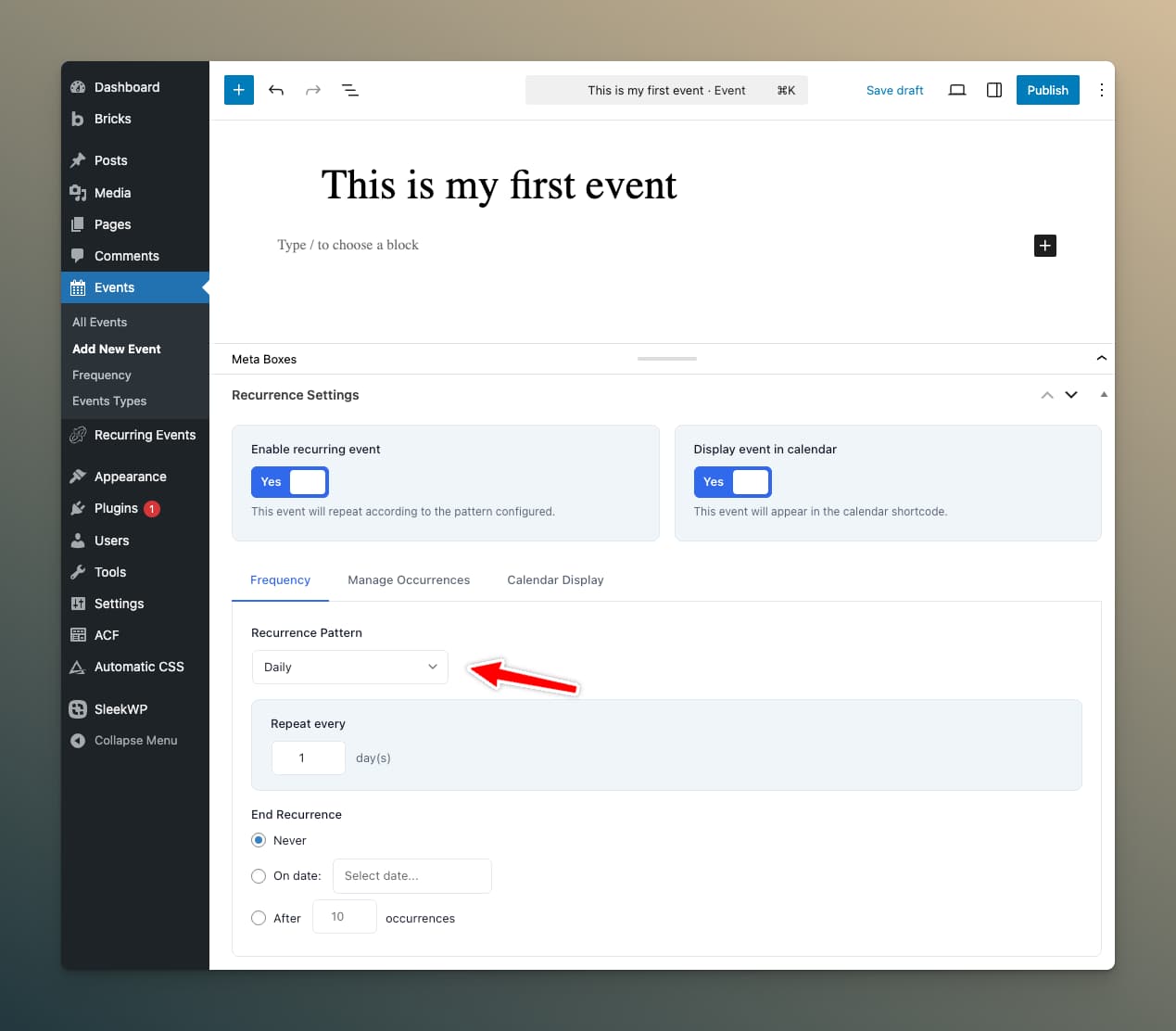
Choosing a Recurrence Pattern
Select your recurrence pattern from the dropdown:
Daily
Event repeats every day or every X days.
- Every day: Event occurs daily
- Every X days: Set an interval (e.g., every 3 days)
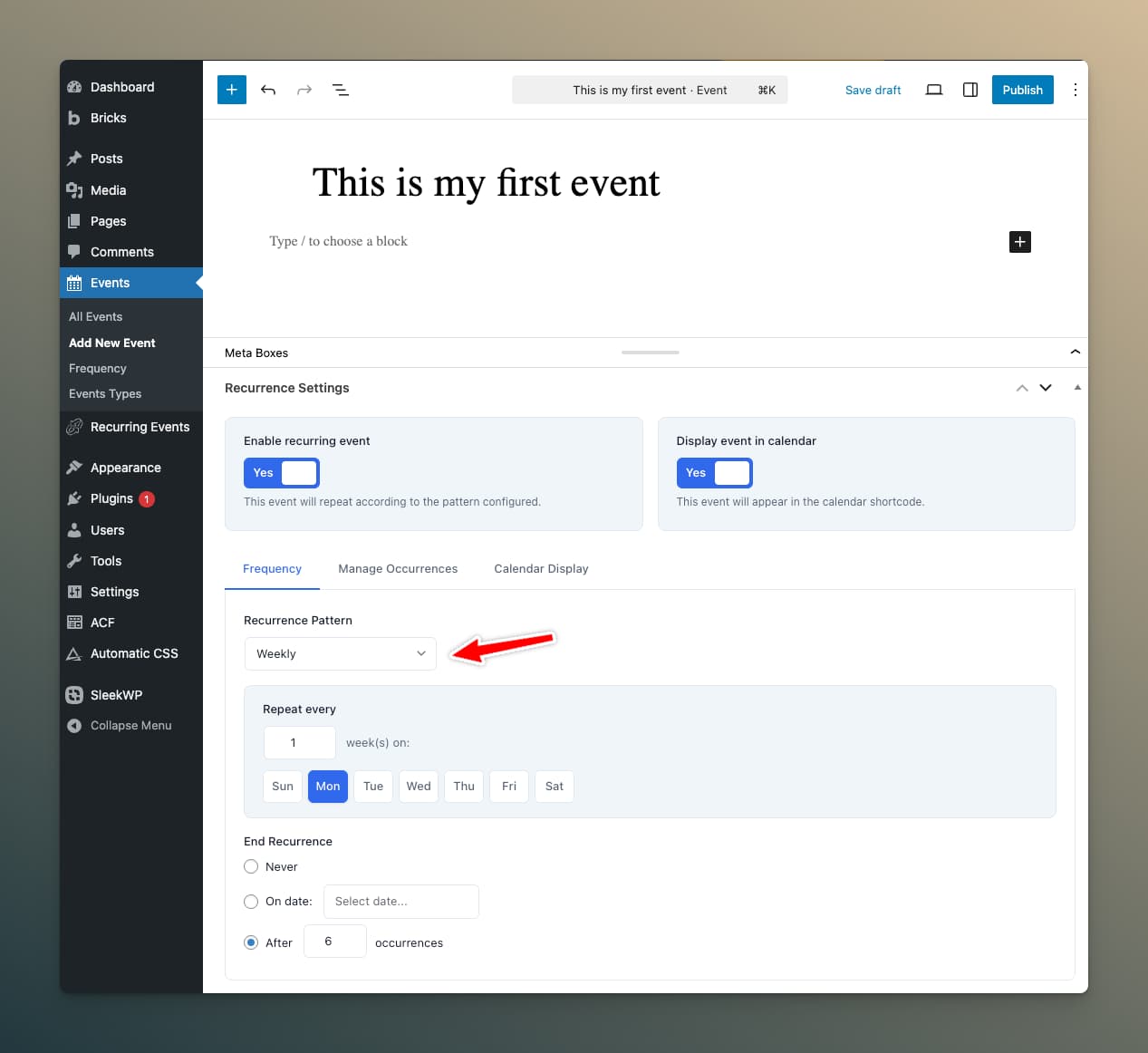
Weekly
Event repeats on specific days of the week.
- Days: Select which days (Mon, Tue, Wed, etc.)
- Interval: Every week, every 2 weeks, etc.
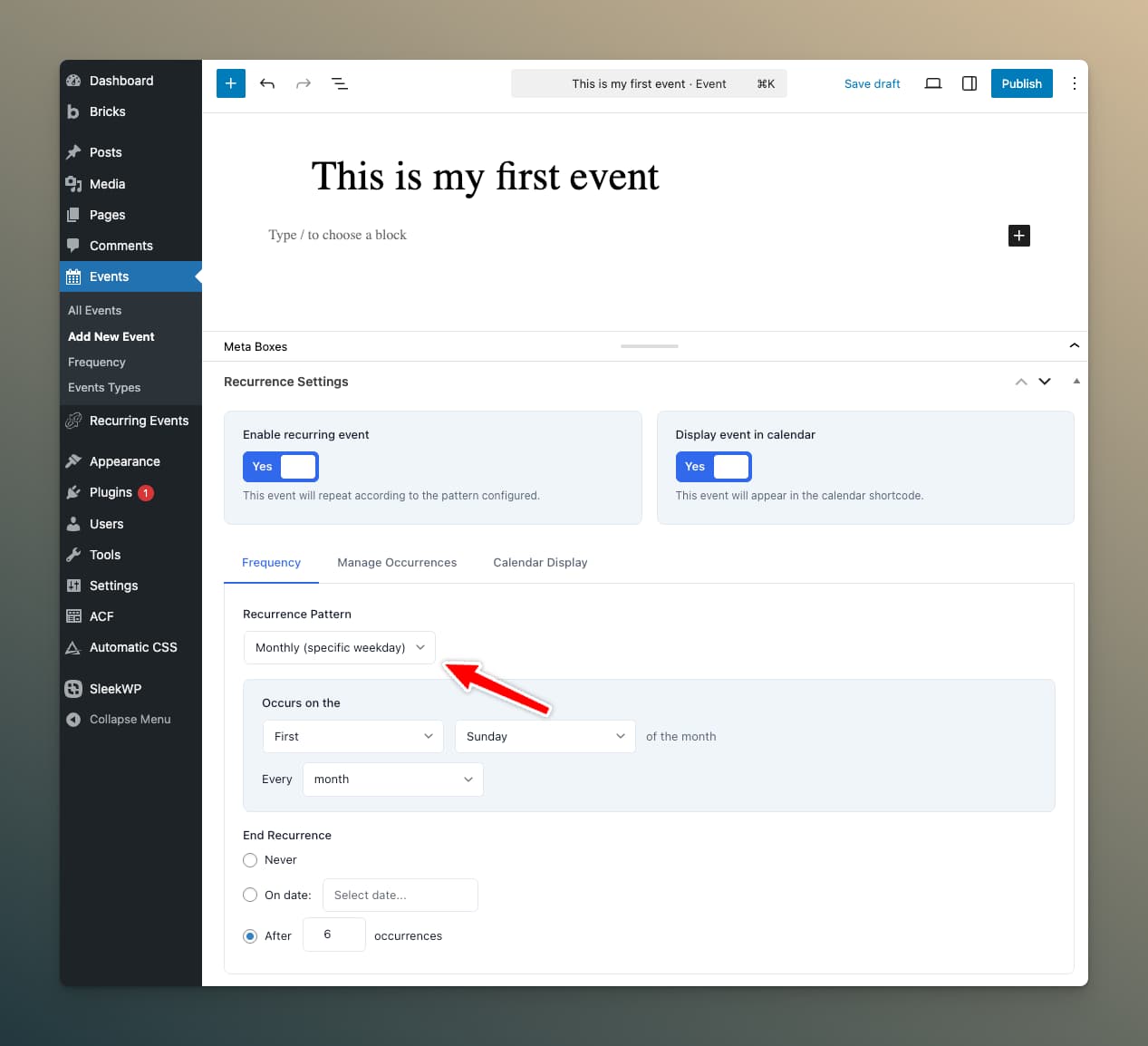
Monthly (Nth Weekday)
Event occurs on a specific weekday of the month.
- Ordinal: First, Second, Third, Fourth, or Last (select multiple to combine, e.g., "1st and 3rd Tuesday")
- Weekday: Sunday through Saturday
- Interval: Every month, every 2 months, etc.
Examples:
- First Monday of every month
- First and Third Tuesday of every month
- Last Friday of every month
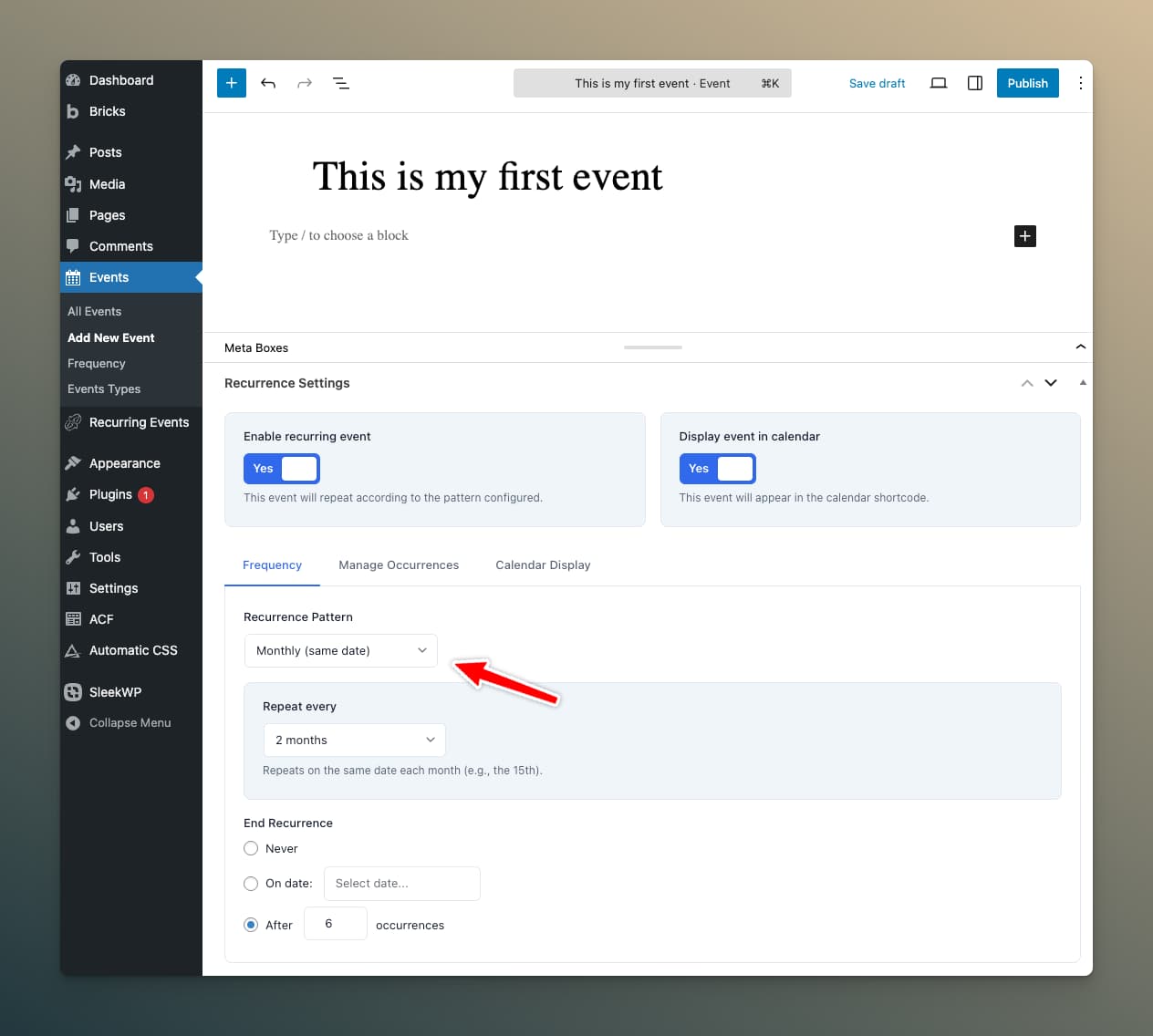
Monthly (Same Date)
Event repeats on the same date each month.
- Uses the anchor date's day number
- Interval: Every month, every 2 months, every 3 months, every 6 months, etc.
Yearly
Event occurs once per year on the same date.
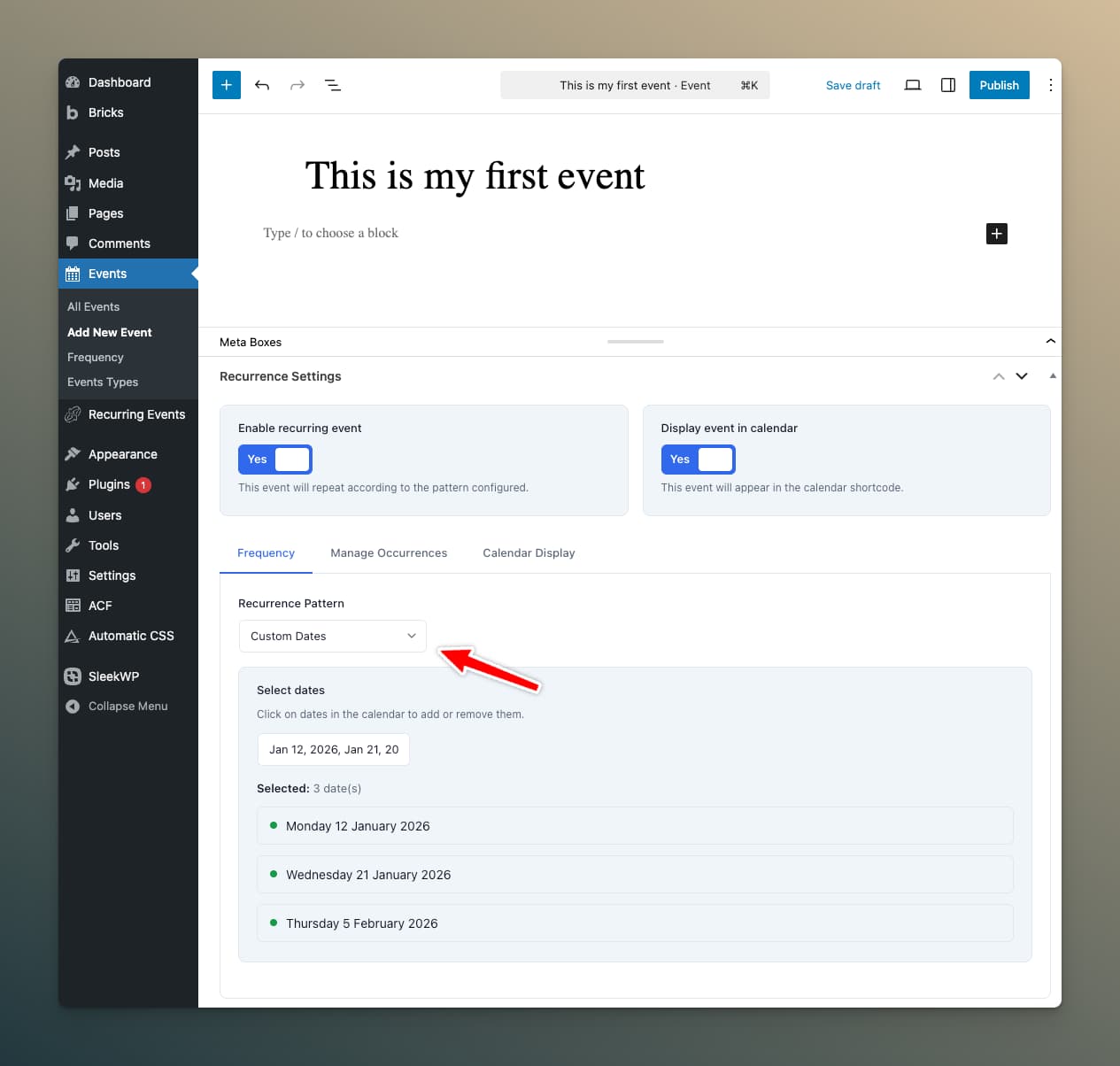
Custom Dates
Manually select specific dates for irregular schedules.
End Recurrence Options
Control when the recurrence stops:
| Option | Description |
|---|---|
| Never | Continues indefinitely |
| On Date | Ends on a specific date |
| After X Occurrences | Stops after a set number of occurrences |
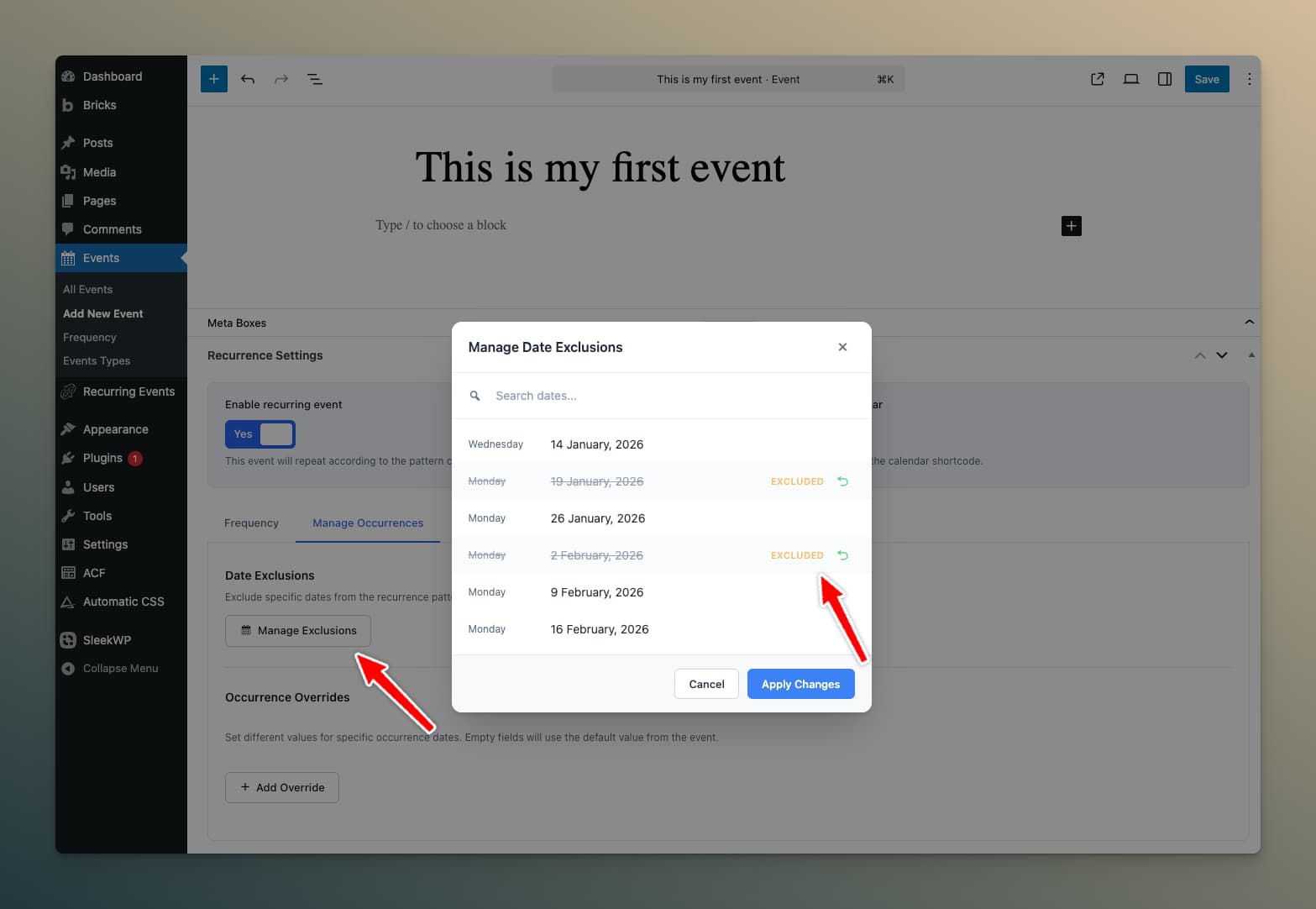
Exception Dates
Exclude specific dates from the recurrence pattern. Perfect for:
- Holidays
- Venue closures
- One-time cancellations
- Click Manage Exclusions
- Browse or search available dates
- Check dates to exclude
- Save changes
Event Schema Tab
When Schema.org output is enabled in plugin settings, the Event Schema tab appears in the metabox with per-event options:
Event Status
Set the event's status: Scheduled (default), Cancelled, Postponed, or Rescheduled. This is reflected in both the frontend display and the schema.org markup. See Event Status & Labels for details.
Display Label
Add a custom freeform label like "Sold Out", "Almost Full", or "Free Entry". This can be displayed on the frontend using the {lre_event_label} dynamic tag or [lre_label] shortcode.
Location & Organizer
Override the global schema defaults for this specific event's venue name, address, and organizer details.
Calendar Display Tab
When "Display event in calendar" is enabled, additional options appear:
Event Color
Choose a custom color for this event in the calendar. Leave empty to use the default theme color.
Save Your Event
Click Publish (or Update for existing events) to save your recurrence settings. The plugin will automatically calculate upcoming occurrences.
Verify It Works
Test your configuration:
- Shortcode test: Add
[lre_next_date]to a page—it should show the next occurrence - Calendar test: Add
[lre_calendar]to see your event on the calendar - Query loop: If using Bricks or Elementor, create a query loop to list occurrences
Next Steps
- Learn about Recurrence Patterns in detail
- Set up Bricks Builder Integration
- Configure the Interactive Calendar